最近几年来,地理信息系统无论是在理论上还是应用上都处在一个飞速发展的阶段。 GIS被应用于多个领域的建模和决策支持,如城市管理、区划、环境整治等等,地理信息成为信息时代重要的组成部分之一; “数字地球”概念的提出,更进一步推动了作为其技术支撑的GIS的发展。 与此同时,一些学者致力于相关的理论研究,如空间感知、空间数据误差、空间关系的形式化等等。 这恰好说明了地理信息系统作为应用技术和学科的两个方面,并且这两个方面构成了相互促进的发展过程。
IntelliJ IDEA has built-in support for Maven. We are using IntelliJ IDEA Community Edition 11.1 in this example.
Some of the features of IntelliJ IDEA are listed below:
You can run the Maven target through IntelliJ IDEA.
You can view the output of the Maven command in IntelliJ IDEA’s own terminal.
You can update the dependency of Maven in IDE.
You can start the build of Maven in IntelliJ IDEA.
IntelliJ IDEA is based on Maven’s pom.xml to automate dependency management.
IntelliJ IDEA can solve the Maven dependency problem through its own workspace without having to install to the local Maven repository, although the dependent project is in the same workspace.
IntelliJ IDEA can automatically download the required dependencies and source code from the remote Maven repository.
IntelliJ IDEA provides wizards to create Maven projects and pom.xml files.
11.20.1. Create a new project in IntelliJ IDEA 
Use the New Project wizard to import a Maven project.
Open IntelliJ IDEA.
Choice File Menu > New Project Options.
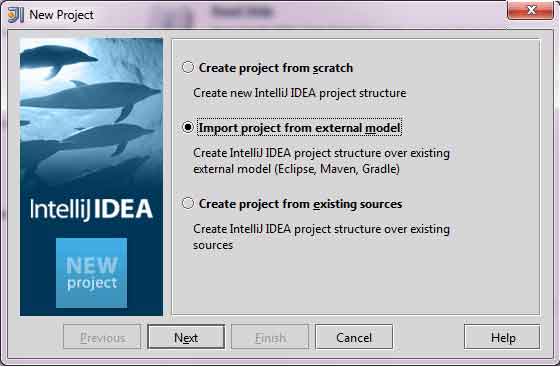
Choice import project from existing model Options.
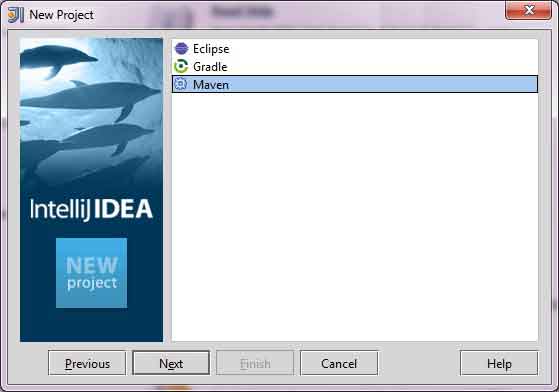
Choice Maven Options.
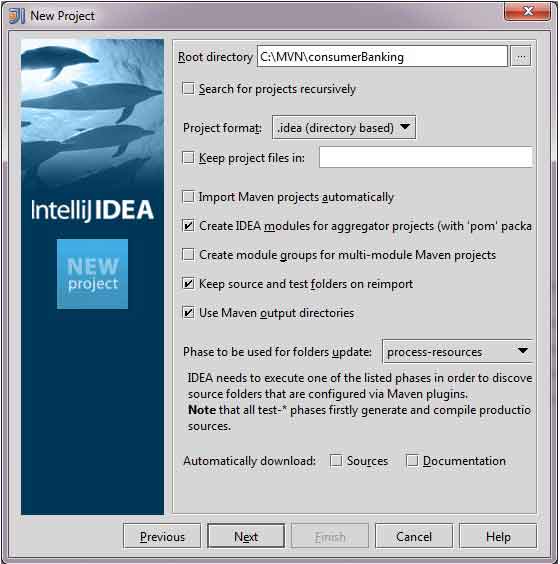
Select the project path, which is the storage path when you create a project using Maven. Suppose we create a project consumerBanking . Pass through Maven 构建 Java 项目 See how to create a project using Maven.
Select the Maven project to import.
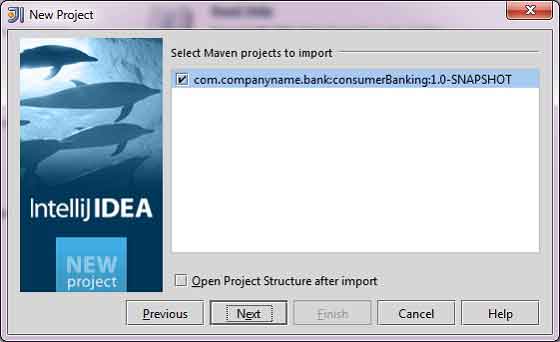
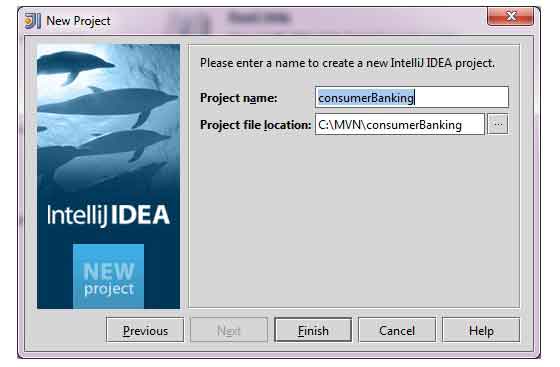
Enter the project name and click “finish”.
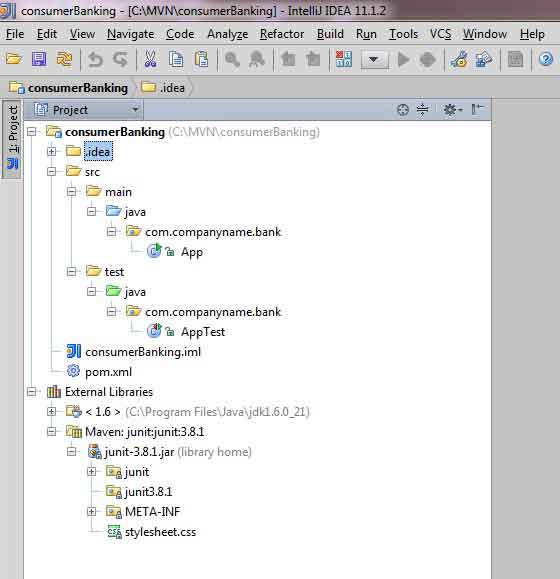
Now we can see the Maven project in IntelliJ IDEA. If you look at the Libraries and Test Libraries of the consumerBanking project, you can see that IntelliJ IDEA has added everything that Maven depends on to its build path.
11.20.2. Build a Maven project in IntelliJ IDEA 
All right, let’s build the Maven project using the compilation capabilities of IntelliJ IDEA.
Select the consumerBanking project.
Choice Buid menu > Rebuild Project Options.
You can see the log of the build process output in the terminal of IntelliJ IDEA:
4:01:56 PM Compilation completed successfully 11.20.3. Run the application in IntelliJ IDEA 
Select the consumerBanking project.
Right-click the App.java pop-up context menu.
Choice Run App.main() .
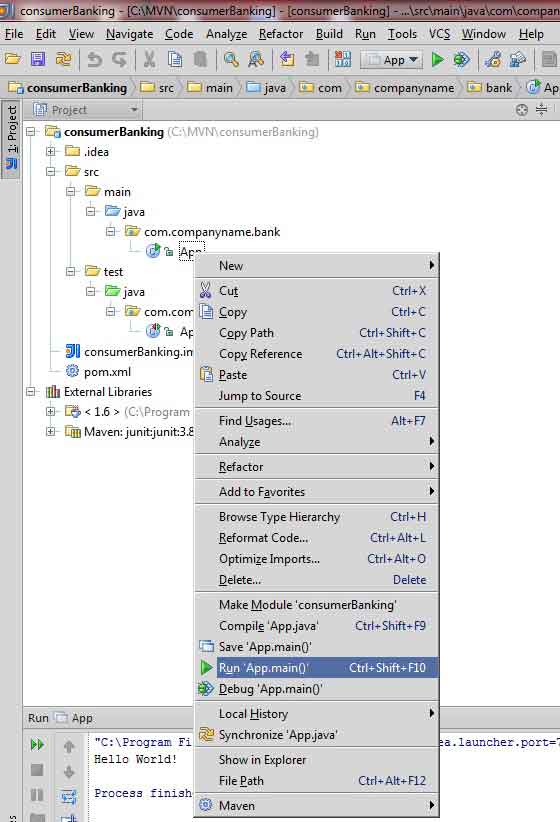
You will see the following running result under the terminal of IntelliJ IDEA:
"C:\Program Files\Java\jdk1.6.0_21\bin\java" -Didea.launcher.port=7533 "-Didea.launcher.bin.path= C:\Program Files\JetBrains\IntelliJ IDEA Community Edition 11.1.2\bin" -Dfile.encoding=UTF-8 -classpath "C:\Program Files\Java\jdk1.6.0_21\jre\lib\charsets.jar; C:\Program Files\Java\jdk1.6.0_21\jre\lib\deploy.jar; C:\Program Files\Java\jdk1.6.0_21\jre\lib\javaws.jar; C:\Program Files\Java\jdk1.6.0_21\jre\lib\jce.jar; C:\Program Files\Java\jdk1.6.0_21\jre\lib\jsse.jar; C:\Program Files\Java\jdk1.6.0_21\jre\lib\management-agent.jar; C:\Program Files\Java\jdk1.6.0_21\jre\lib\plugin.jar; C:\Program Files\Java\jdk1.6.0_21\jre\lib\resources.jar; C:\Program Files\Java\jdk1.6.0_21\jre\lib\rt.jar; C:\Program Files\Java\jdk1.6.0_21\jre\lib\ext\dnsns.jar; C:\Program Files\Java\jdk1.6.0_21\jre\lib\ext\localedata.jar; C:\Program Files\Java\jdk1.6.0_21\jre\lib\ext\sunjce_provider.jar; C:\Program Files\Java\jdk1.6.0_21\jre\lib\ext\sunmscapi.jar; C:\Program Files\Java\jdk1.6.0_21\jre\lib\ext\sunpkcs11.jar C:\MVN\consumerBanking\target\classes; C:\Program Files\JetBrains\ IntelliJ IDEA Community Edition 11.1.2\lib\idea_rt.jar" com.intellij.rt.execution.application.AppMain com.companyname.bank.App Hello World! Process finished with exit code 0