最近几年来,地理信息系统无论是在理论上还是应用上都处在一个飞速发展的阶段。 GIS被应用于多个领域的建模和决策支持,如城市管理、区划、环境整治等等,地理信息成为信息时代重要的组成部分之一; “数字地球”概念的提出,更进一步推动了作为其技术支撑的GIS的发展。 与此同时,一些学者致力于相关的理论研究,如空间感知、空间数据误差、空间关系的形式化等等。 这恰好说明了地理信息系统作为应用技术和学科的两个方面,并且这两个方面构成了相互促进的发展过程。
Docker is not a general-purpose container tool, it relies on the existing and running Linux kernel environment.
Docker essentially creates an isolated file environment under Linux that is already running, so it performs almost as efficiently as the deployed Linux host.
Therefore, Docker must be deployed on the system of the Linux kernel. If other systems want to deploy Docker, they must install a virtual Linux environment.
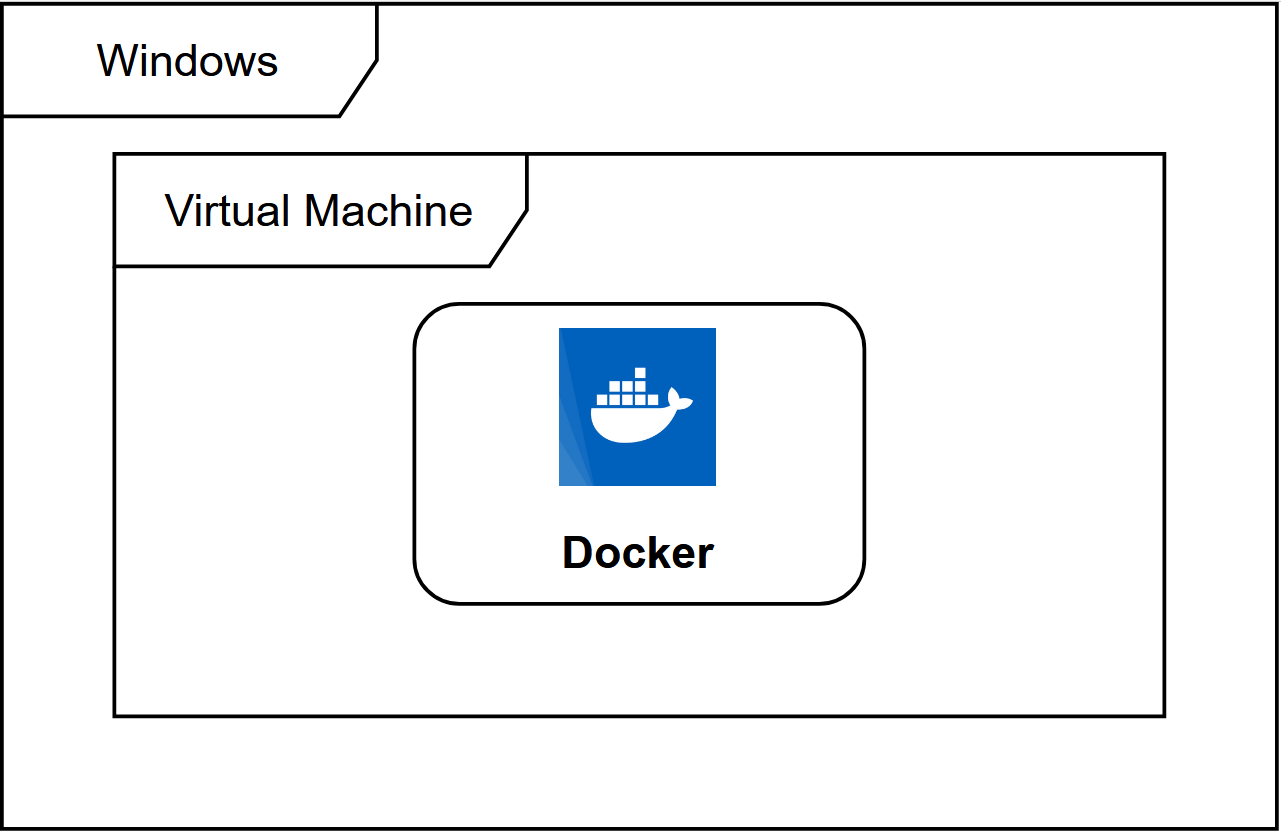
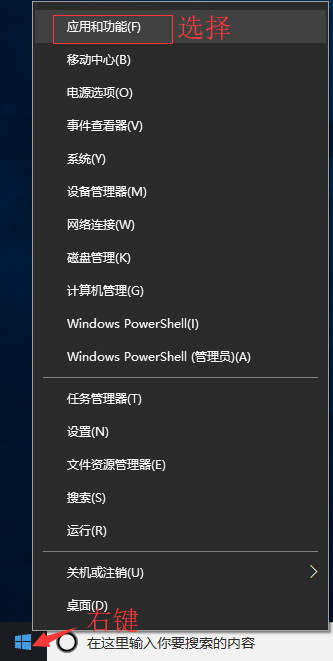
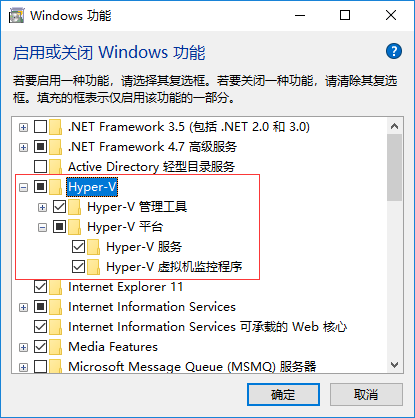
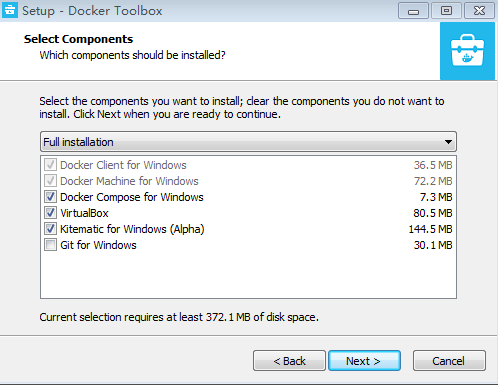
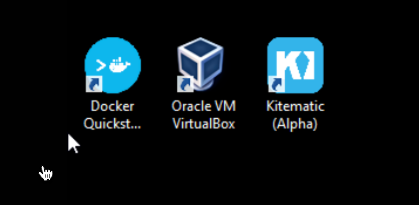
The way to deploy Docker on Windows is to install a virtual machine first and run Docker in the virtual machine where the Linux system is installed. Docker Desktop is the official installation of Docker on Windows 10 and macOS operating systems, and this method still belongs to the method of installing Linux in the virtual machine before installing Docker. Official download address of Docker Desktop: https://hub.docker.com/editions/community/docker-ce-desktop-windows 注意: This method is only applicable to Windows 10 operating system Professional Edition, Enterprise Edition, Educational Edition and some Home Edition! Hyper-V is a virtual machine developed by Microsoft, similar to VMWare or VirtualBox, and is only applicable to Windows 10. This is the virtual machine used by Docker Desktop for Windows. However, once this virtual machine is enabled, QEMU, VirtualBox, or VMWare Workstation 15 or later will not be available! If you have to use other virtual machines on your computer (such as simulators that you must use to develop Android applications), please do not use Hyper-V! Programs and functions Enable or disable the Windows feature Check Hyper-V You can also enable Hyper-V through the command, right-click the start menu and run PowerShell as an administrator, execute the following command: Click Get started with Docker Desktop And download the version of Windows, if you are not already logged in, you will be required to register and log in: Double-click the downloaded Docker for Windows Installer installation file, Next all the way, and click Finish to complete the installation. When the installation is complete, Docker starts automatically. A little whale icon will appear on the notification bar. Three icons also appear at the table, as shown in the following figure: We can execute docker version on the command line to check the version number and docker run hello-world to load the test image test. If it doesn’t start, you can search Docker on Windows to start it: After startup, you can also see the little whale icon on the notification bar: If you encounter an error caused by WSL 2 during startup, install WSL 2 . After installation, you can open PowerShell and run the following command to check whether it is running successfully: The following message should appear after a successful run: Win7, win8, etc. need to be installed using docker toolbox. In China, you can use Aliyun’s image to download it. Download address: http://mirrors.aliyun.com/docker-toolbox/windows/docker-toolbox/ Installation is relatively simple. Double-click to run, click next, and you can check the components you need: Docker toolbox is a toolset that mainly includes the following: Docker CLI-client, used to run the docker engine to create images and containers. Docker Machine-allows you to run docker engine commands from the command line of Windows. Docker Compose-used to run the docker-compose command. Kitematic-this is the GUI version of Docker. Docker QuickStart shell-this is a command line environment with Docker configured. Oracle VM Virtualbox-Virtual machine. Click install directly after the download is completed. After the installation is successful, three icons will appear at the desk, as shown in the following figure: Click the Docker QuickStart icon to start the Docker Toolbox terminal. If the system displays a User Account Control window to run VirtualBox to modify your computer, select Yes. $symbol then you can enter the following command to execute. 2.6.1. Win10 system 
Install Hyper-V 
Turn on Hyper-V 


Enable-WindowsOptionalFeature -Online -FeatureName Microsoft-Hyper-V -All
Install Docker Desktop for Windows 
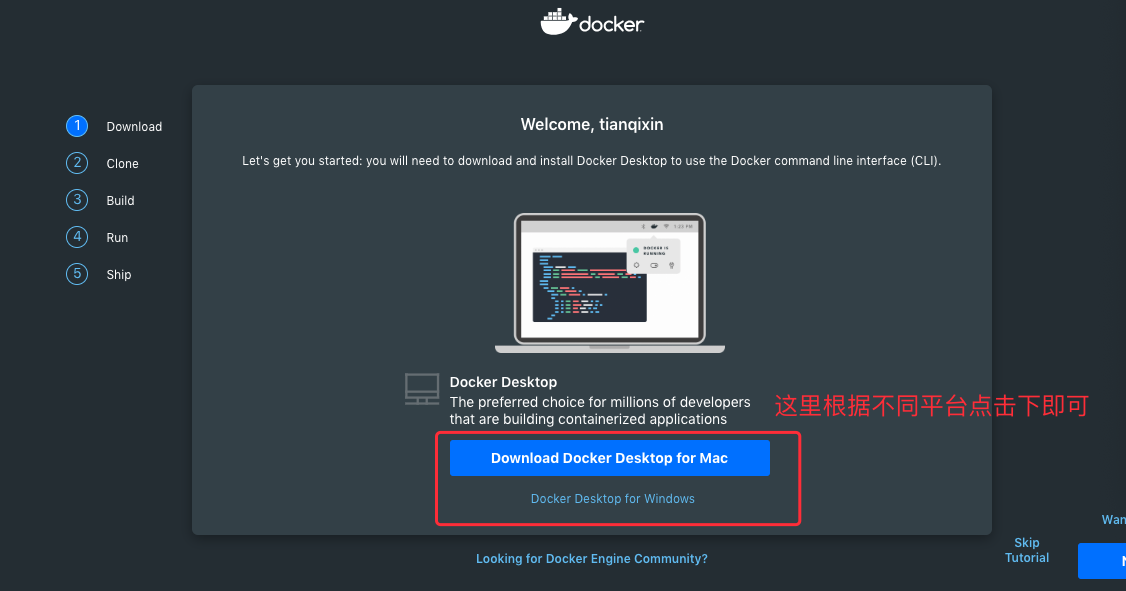
Run the installation file 
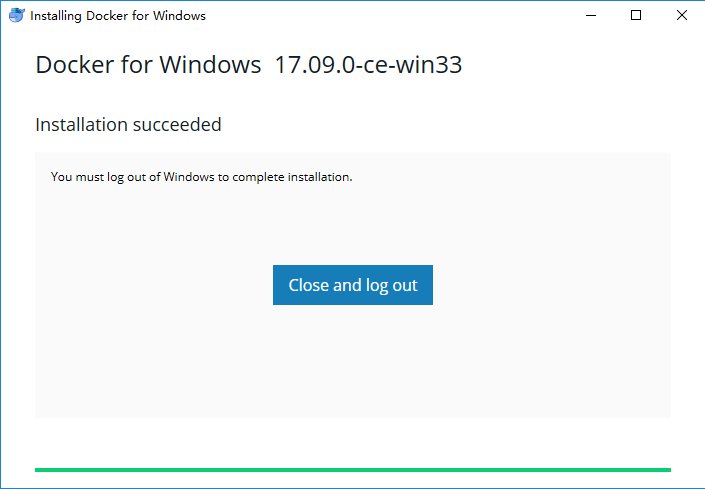
 Which means that Docker is running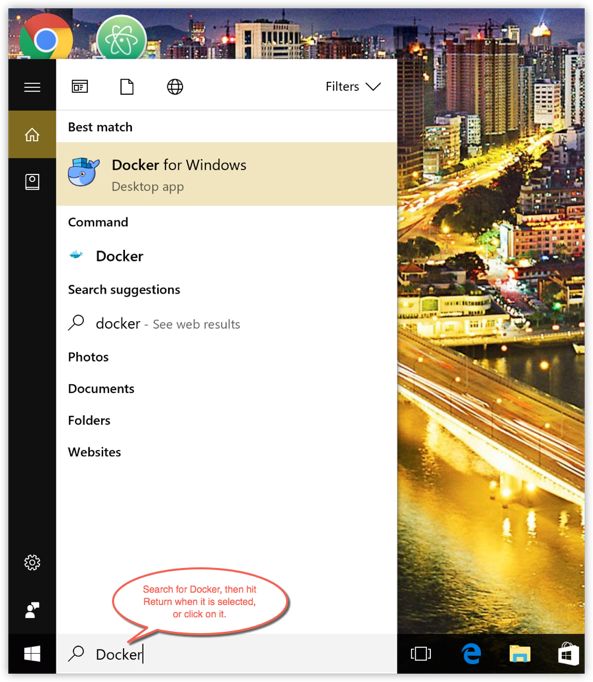

docker run hello-world
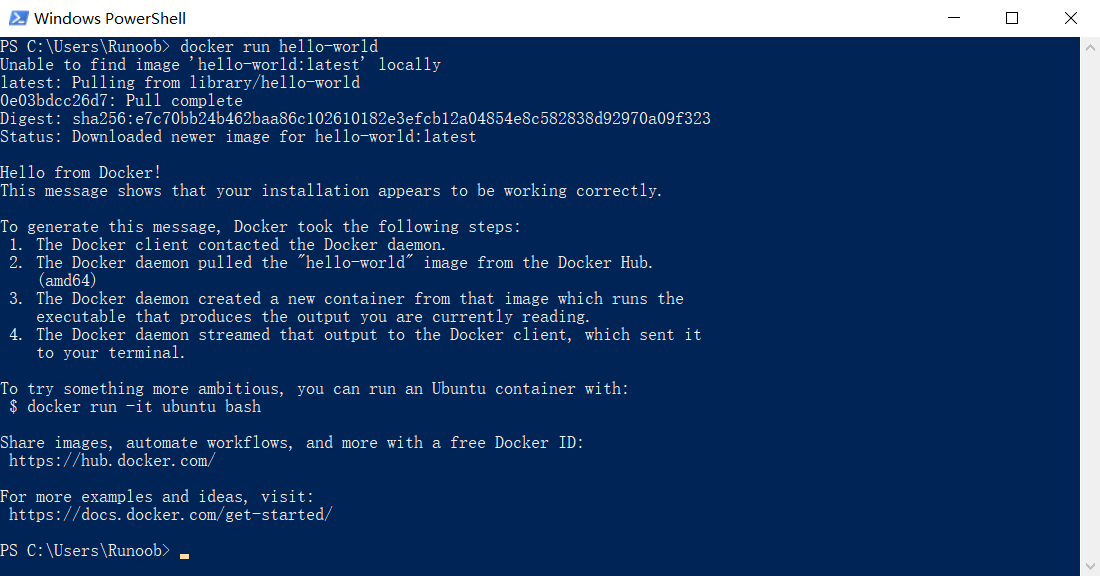
2.6.2. Win7, win8 system 
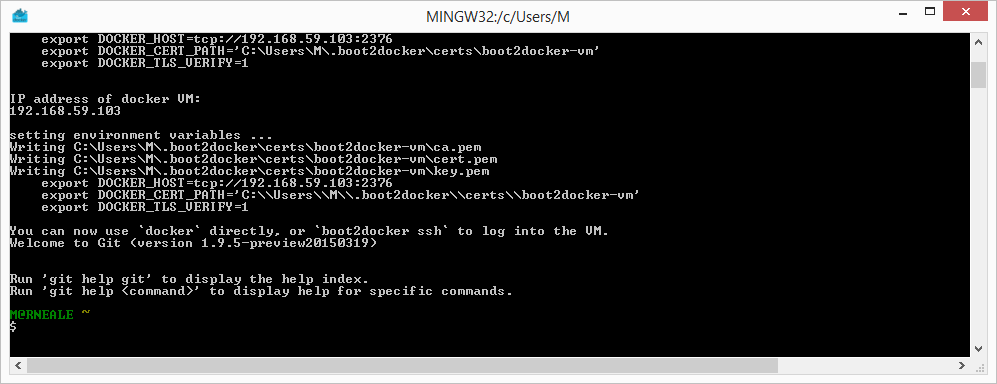
$ docker run hello-world Unable to find image 'hello-world:latest' locally Pulling repository hello-world 91c95931e552: Download complete a8219747be10: Download complete Status: Downloaded newer image for hello-world:latest Hello from Docker. This message shows that your installation appears to be working correctly. To generate this message, Docker took the following steps: 1. The Docker Engine CLI client contacted the Docker Engine daemon. 2. The Docker Engine daemon pulled the "hello-world" image from the Docker Hub. (Assuming it was not already locally available.) 3. The Docker Engine daemon created a new container from that image which runs the executable that produces the output you are currently reading. 4. The Docker Engine daemon streamed that output to the Docker Engine CLI client, which sent it to your terminal. To try something more ambitious, you can run an Ubuntu container with: $ docker run -it ubuntu bash For more examples and ideas, visit: https://docs.docker.com/userguide/