最近几年来,地理信息系统无论是在理论上还是应用上都处在一个飞速发展的阶段。 GIS被应用于多个领域的建模和决策支持,如城市管理、区划、环境整治等等,地理信息成为信息时代重要的组成部分之一; “数字地球”概念的提出,更进一步推动了作为其技术支撑的GIS的发展。 与此同时,一些学者致力于相关的理论研究,如空间感知、空间数据误差、空间关系的形式化等等。 这恰好说明了地理信息系统作为应用技术和学科的两个方面,并且这两个方面构成了相互促进的发展过程。
A service is a component that runs in the background and performs long-running tasks that do not require user interaction. Even if the application is destroyed, it still works. The service basically consists of two states-
Status | Description |
|---|---|
Started | An application component of Android, such as an activity, starts a service through startService (), then the service is in a Started state. Once started, the service can run indefinitely in the background, even if the component that started it has been destroyed. |
Bound | When the application component of Android binds the service through bindService (), the service is Bound state. Bound stateful services provide a client-server interface to allow components to interact with services, such as sending requests, getting results, and even communicating across processes through IPC. |
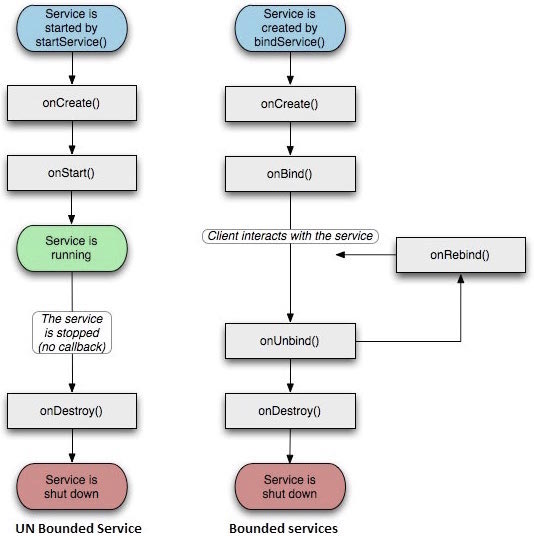
The service has a lifecycle approach that can monitor changes in the state of the service and perform work at the appropriate stage. The figure on the left below shows when the service passes through startService() The life cycle when it is created, and the figure on the right shows when the service passes through bindService() The life cycle when it is created:
To create a service, you need to create a service that inherits from the Service The Java class of the base class or its known subclass. Service The base class defines different callback methods and most important methods. You don’t need to implement all callback methods. Even so, it is important to understand all the methods. Implementing these callbacks ensures that your application is implemented in the way users expect it to be.
Callback | Description |
|---|---|
OnStartCommand () | This method is called when other components, such as activities, call startService () to request that the service be started. If you implement this method, it is your responsibility to stop the service through the stopSelf () or stopService () method when the work is done. |
OnBind | This method is called when other components want to bind the service through bindService (). If you implement this method, you need to return the IBinder object to provide an interface so that the customer can communicate with the service. You must implement this method, and if you do not allow binding, return null directly. |
OnUnbind () | The system invokes this method when the customer interrupts all special interfaces published by the service. |
OnRebind () | This method is called when the new client is connected to the service and it has previously been disconnected through onUnbind (Intent) notification. |
OnCreate () | This method is called when the service is first created through onStartCommand () and onBind (). This call requires an one-time installation. |
OnDestroy () | Your service needs to implement this method to clean up any resources, such as threads, registered listeners, receivers, etc. |
The following main service demonstrates the life cycle of each method-
package com.runoob.androidservices; import android.app.Service; import android.os.IBinder; import android.content.Intent; import android.os.Bundle; public class HelloService extends Service { /** 标识服务如果被杀死之后的行为 */ int mStartMode; /** 绑定的客户端接口 */ IBinder mBinder; /** 标识是否可以使用onRebind */ boolean mAllowRebind; /** 当服务被创建时调用. */ @Override public void onCreate() { } /** 调用startService()启动服务时回调 */ @Override public int onStartCommand(Intent intent, int flags, int startId) { return mStartMode; } /** 通过bindService()绑定到服务的客户端 */ @Override public IBinder onBind(Intent intent) { return mBinder; } /** 通过unbindService()解除所有客户端绑定时调用 */ @Override public boolean onUnbind(Intent intent) { return mAllowRebind; } /** 通过bindService()将客户端绑定到服务时调用*/ @Override public void onRebind(Intent intent) { } /** 服务不再有用且将要被销毁时调用 */ @Override public void onDestroy() { } } 3.11.1. Example 
This example will show you how to create your own Android service through simple steps. Follow these steps to modify the Android application you created earlier in the Hello World instance section:
Steps | Description | ||||||
|---|---|---|---|---|---|---|---|
1 | Use Android Studio IDE to create an Android application and name it androidservices under the com.runoob.androidservices package. Similar to the Hello World instance chapter. | ||||||
2 | Modify the main active file MainActivity.java to add the startService () and stopService () methods. | ||||||
3 | 在包com.runoob.androidservices下创建新的Java文件MyService.java。这个文件将实现Android服务相关的方法。 | ||||||
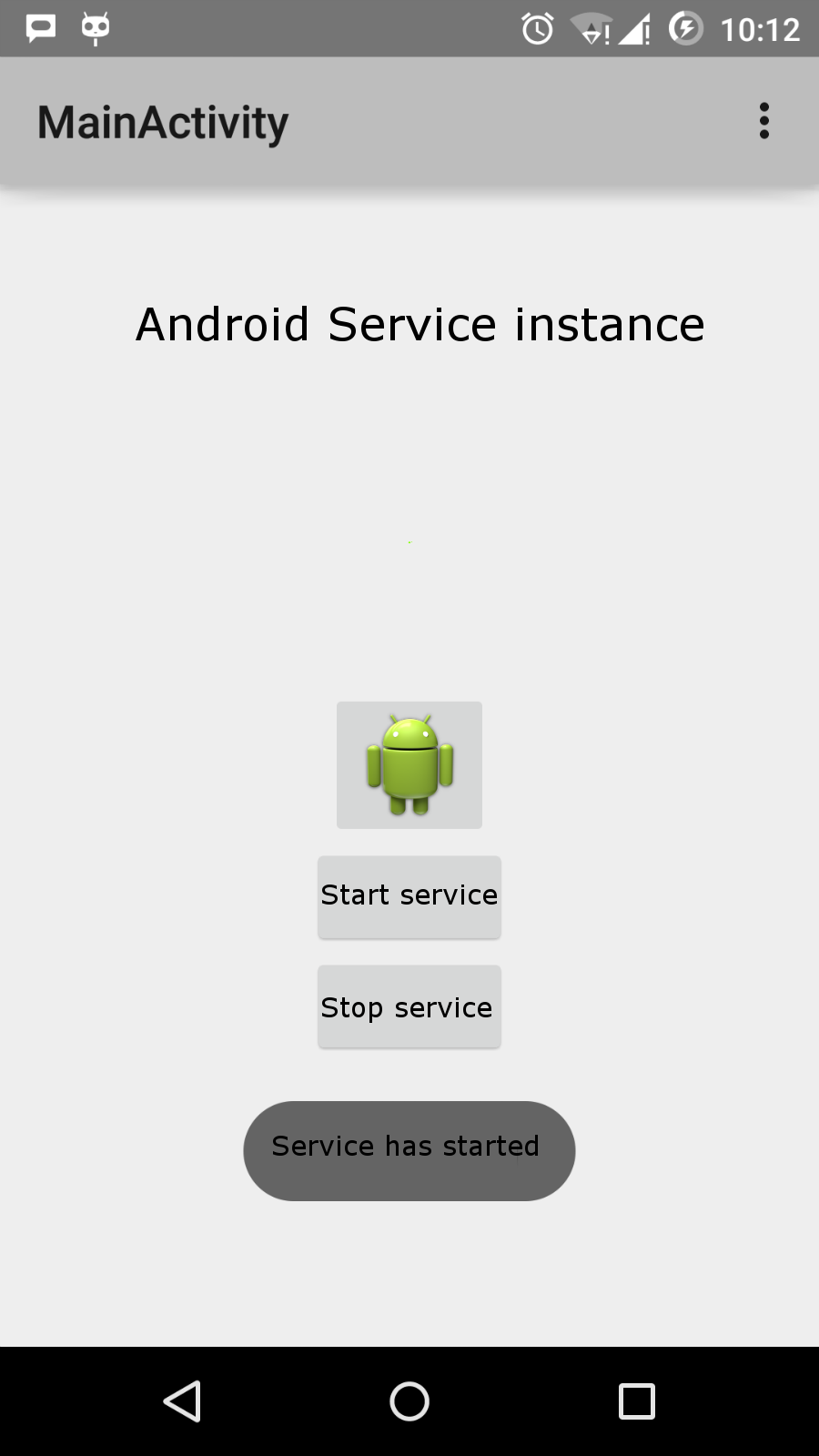
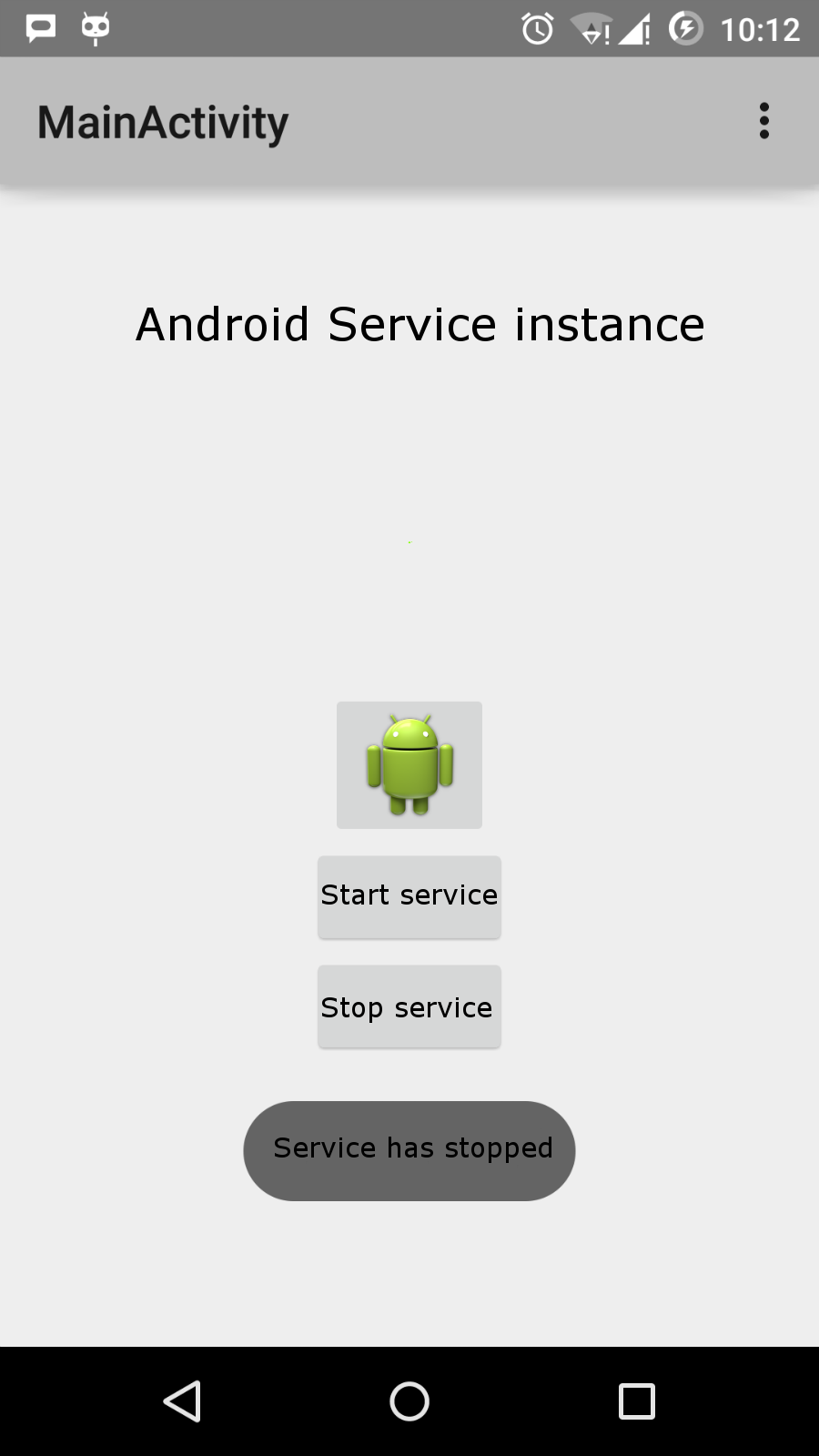
4 | 在AndroidManifest.xml文件中使用 5 修改res/layout/activity_main.xml文件中的默认布局,在线性布局中包含两个按钮。 6 Do not modify any constants in the res/values/strings.xml file. Android Studio pays attention to the string value. 7 Start the Android emulator to run the application and verify the results of the application’s changes. The following is the main activity file The following is The following will be modified The following is The following is Let’s run the My Application application that we just modified. I assume that you have created AVD when you installed the environment. Open the active file in your project and click the icon in the toolbar to run the application in Android Studio. Android Studio installs the application on AVD and starts it. If all goes well, it will be displayed on the simulator window as follows: Now click the “start service” button to start the service, which will execute the Click the “stop service” button at the bottom to stop the service. |