3.5.1. Install the Kotlin plug-in #
Android Studio will be installed built-in starting with version 3.0 (preview) Kotlin plug-in.
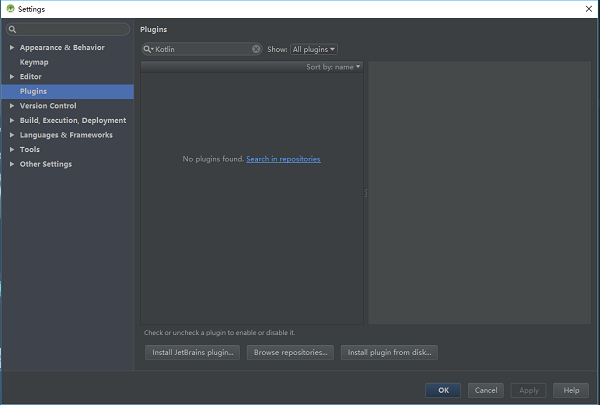
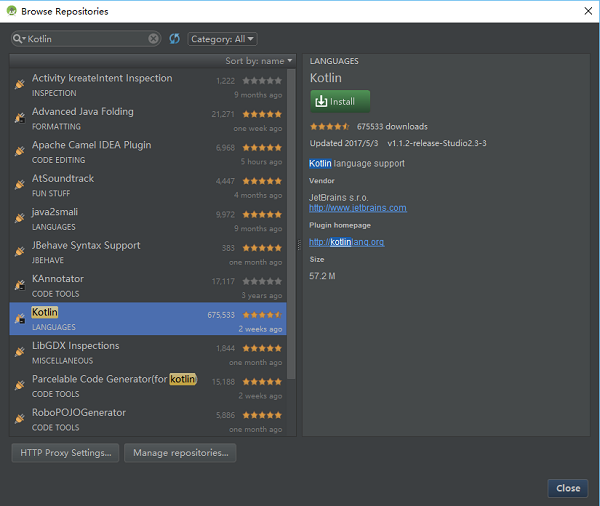
Open Settings (Mac is Preferences) panel, found on the right Plugins option (command+ under the shortcut key Ctrl+, Mac), enter “Kotlin” in the search box, click Search in repositories (search in warehouse), and then install it. After the installation is completed, you need to restart Android Studio .
3.5.2. Create a new project #
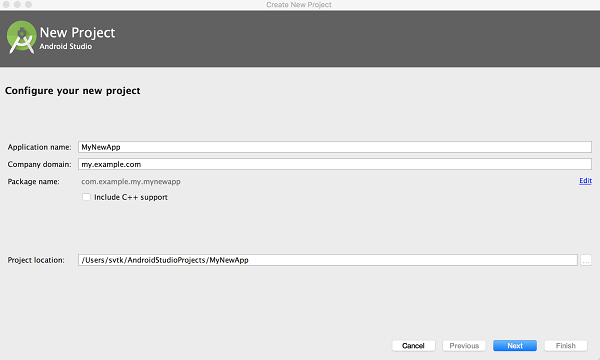
Choice Start a new Android Studio project or File|New project, mostoptions have default values, you only need to press the”enter” key a fewtimes.
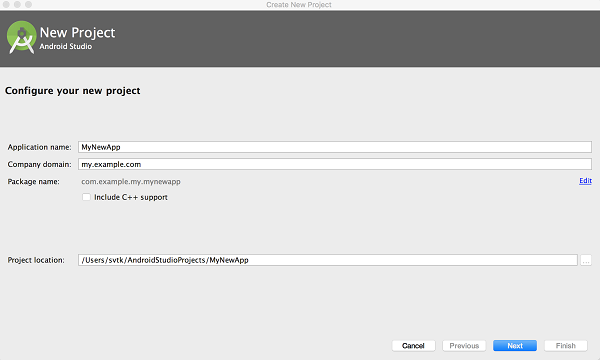
Android Studio 3.0 provides the option to enable Kotlin support in the current dialog box. When checked, you can skip the “configure Kotlin Project (Configuring Kotlin in the project)” step.
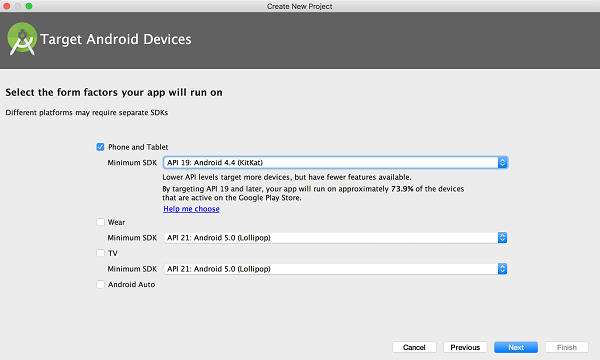
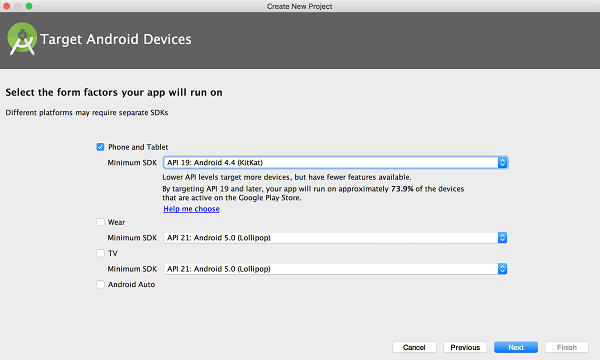
Select the Android version:
Select what you need to create Activity style:
Name the Activity :
In Android Studio 3.0, you can choose to use the Kotlin create activity so the “convert Java code to Kotlin (Converting Java code to Kotlin)” step is not required.
In previous versions, Java was used to create the activity and then convert using the automatic conversion tool.
3.5.3. Convert Java code to Kotlin #
Reopen Android Studio, create a new Android project, and add a default MainActivity
Open MainActivity.java file, call up Code|Convert Java File to Kotlin File through the menu bar:
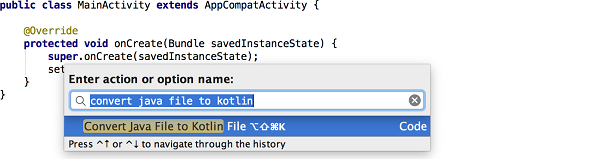
After the conversion is complete, you can see the use of the Kotlin written by activity .

3.5.4. Configure Kotlin in the project #
When you start editing this file, Android Studio will prompt you that the current project has not been configured Kotlin follow the prompts to complete the operation, or you can select Tools
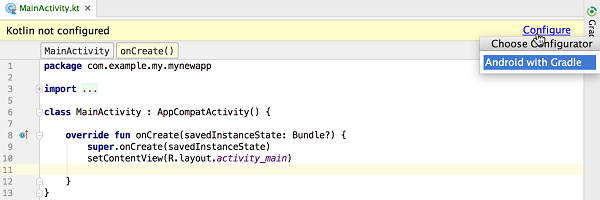
When selecting the configuration, there is the following dialog box to select the latest installed version.
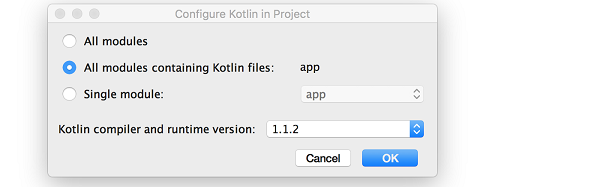
After the configuration Kotlin is complete, the application’s build.gradle file will be updated. You can see the addition of applyplugin: ‘kotlin-android’ and its dependencies.

To synchronize the project, click “Sync Now” in the prompt box or use the Sync Project with Gradle Files orders.
