Swift is an open source programming language for developing OS X and iOS applications.
Before the formal development of applications, we need to build a Swift development environment, in order to better use a variety of development tools and languages for rapid application development. Because the Swift development environment needs to run in the OS X system, so the constructionof its environment will be different from the Windows environment. Let’s learn how to build the swift development environment.
The prerequisites for successfully building a swift development environment:
You must have an Apple computer. Because the integrated development environment XCode can only run on OS X systems.
The computer system must be OS 10.9.3 or above.
The computer must have the Xcode integrated development environment installed.
9.2.1. Download Swift development tools Xcode #
The official website address of Swift development tools is https://developer.apple.com/xcode/download/ .
Swift source code download: https://swift.org/download/#latest-development-snapshots
After the download is complete, double-click the downloaded dmg file to install, and after the installation is complete, we will move the Xcode iconto the application folder.
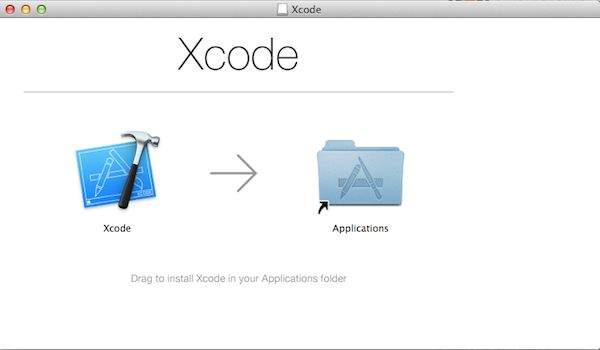
You can also search for xcode installation in App Store, as shown in the following figure:
9.2.2. The first Swift program #
After the Xcode installation is complete, we can start writing Swift code.
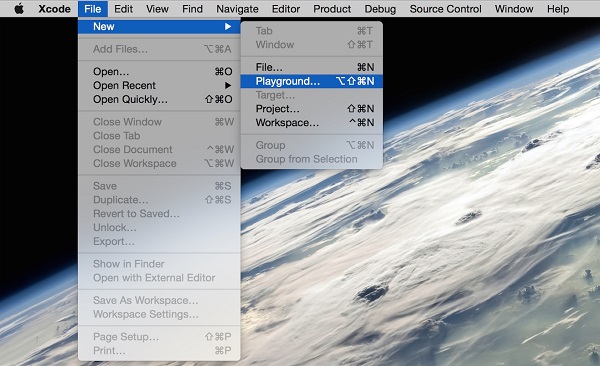
Next, we open Xcode in the application folder, and select File = > New = > Playground at the top of the screen.
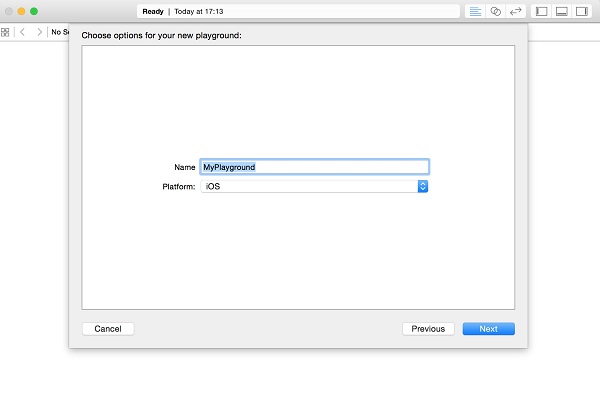
Then set a name for playground and select the iOS platform.
Swift’s playground is like an interactive document, it is used to practice hand-learning swift, write a sentence of code to produce a line of results (right), you can view the code results in real time, is a sharp tool to learn the swift language!
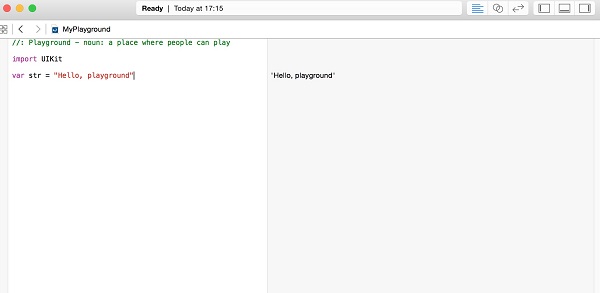
The following is the default code for the Swift Playground window:
import UIKit var str = "Hello, playground" If you want to create an OS x program, you need to import the Cocoa package``import Cocoa`` the code is as follows:
import Cocoa var str = "Hello, playground" After the above program is loaded, the program execution result will be displayed on the right side of the Playground window:
Hello, playground So far, you have completed the study of the first Swift program. Congratulations on getting started.
9.2.3. Create the first project #
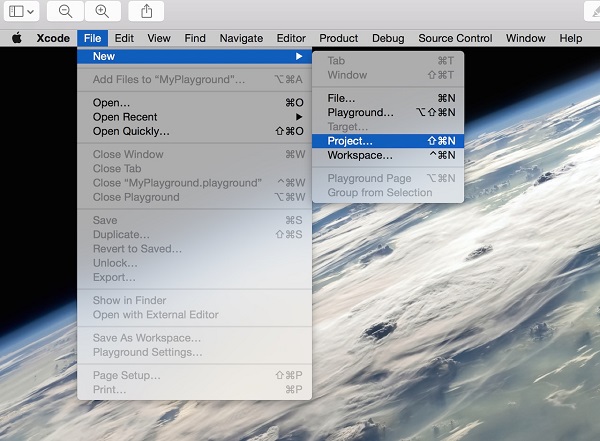
1.Open the xcode tool and select File = > New = > Project
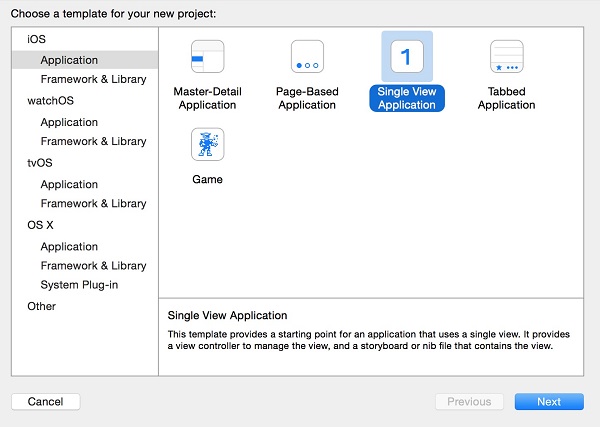
2.Let’s select a “Single View Application” and click “next” to create asimple example app application.
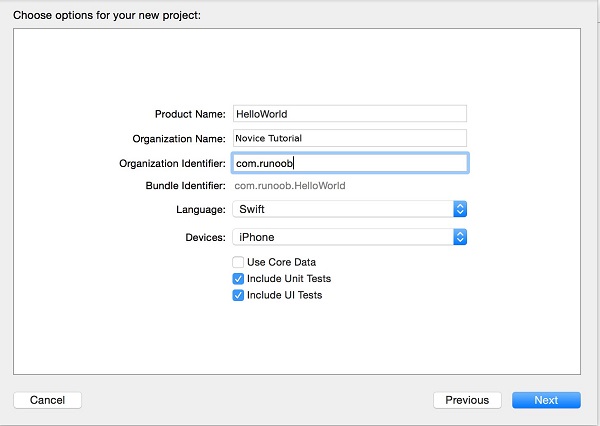
3.Then we enter the project name (ProductName), the company name (Organization Name), the company logo prefix (Organization identifier), and then select the development language (Language) and the device (Devices).
Language has two options: Objective-c and swift, because we are learning swift, of course, choose the swift item. Click “Next” next.
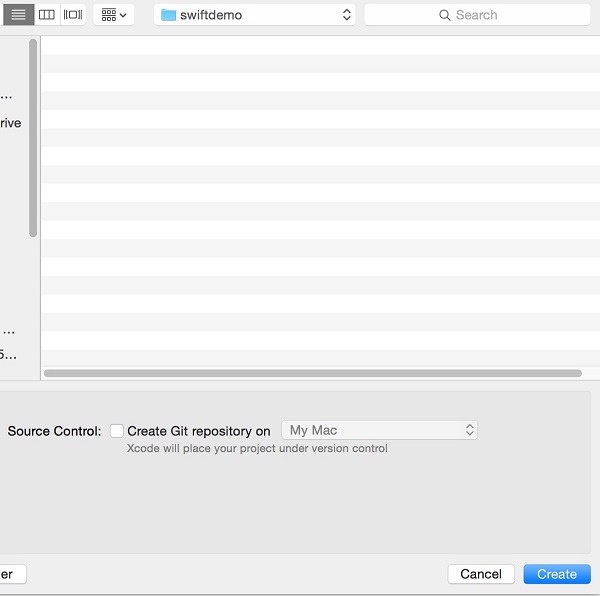
4.Select the directory to store. If you want to use Git source control, youwill check Source Control’s create git repository on My Mac. Click create to create the project.
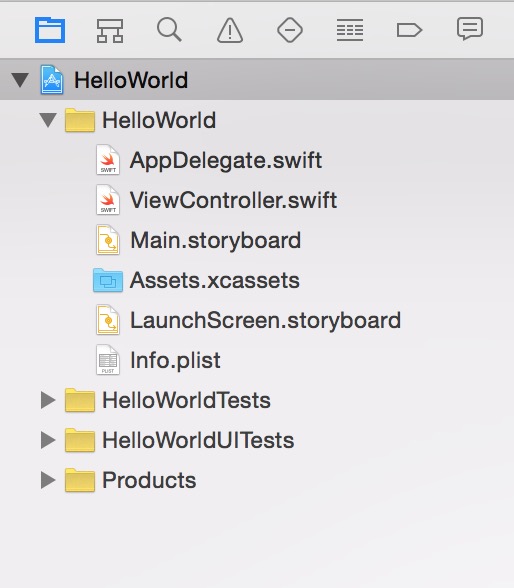
5.After the project is created, a sample file is generated by default. You can see that swift merges the h and m files in oc into a file (that is, the swift suffix file). Main.storyboard is the equivalent of a xib file and has more functions than xib.
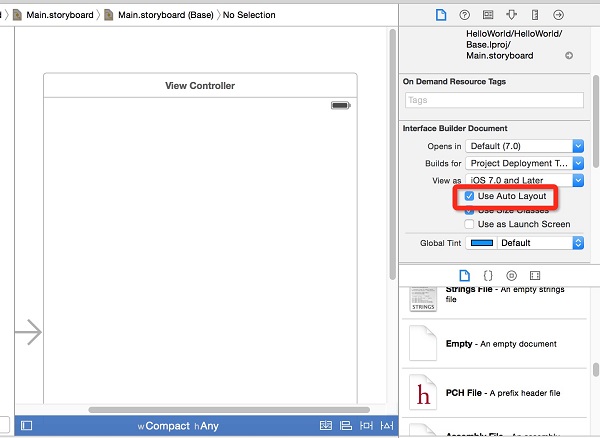
6.Open main.storyboard can see a simple, blank application interface by default, the size of which is the size of a flat interface. If developers only need to develop app that is compatible with iphone phones, you can uncheck Use Auto Layout (the default is checked).
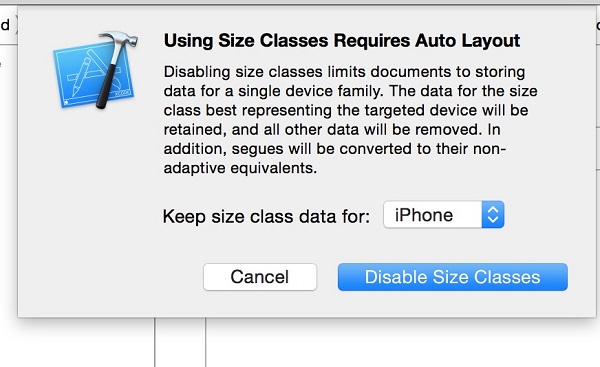
7.A dialog box pops up, let’s choose the interface size, iPhone or iPad. We choose the size of the iPhone.
8.You can see that the interface size has changed to the width and height of the phone’s iphone.
You can remember the dimensions related to the interface to facilitate the layout and calculation location in the future:
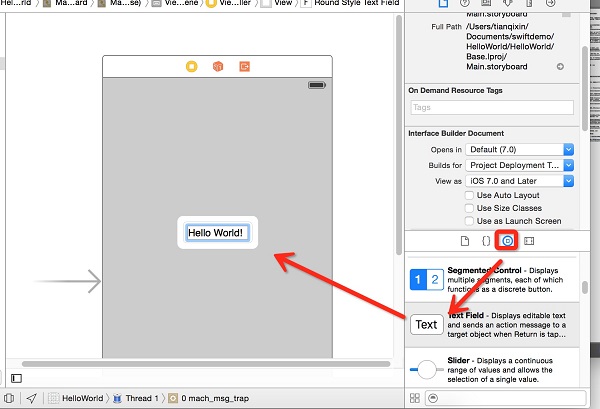
9.We add something to the interface, find the Text control at the bottom right, drag it onto the storyboard, and double-click to write the text “Hello World!”.
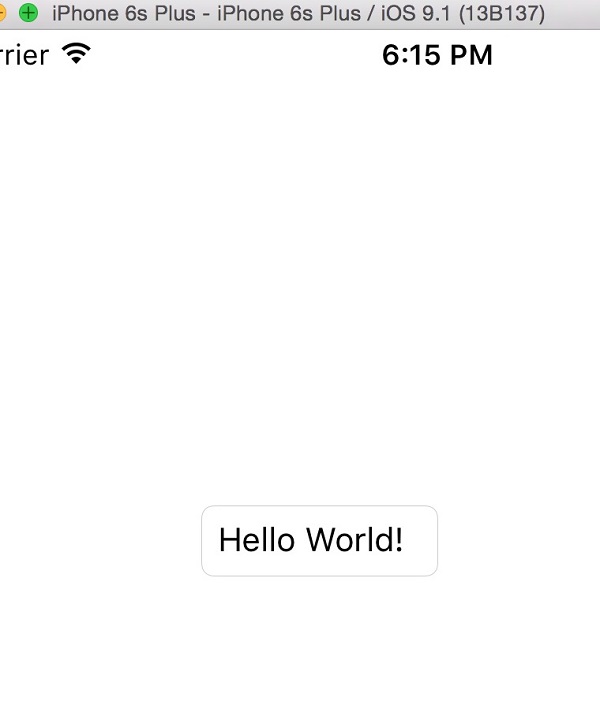
Run the simulator (command+R shortcut or select Product = > Run in the menu bar).
At this point, our first Swift project is complete.