
In this section, we will show you how to display data on the user interface in three ways:
Display the properties of a component through an interpolation expression
Pass through
NgForshow array type propertiesPass through
NgIfachieve conditional display
1.5.1. Display the properties of a component through an interpolation expression 
Interpolation is the easiest way to display the properties of a component in the format {{property name}}.
The following code is created based on the Angular 2 TypeScript environment configuration, where you can download the source code and modify the files mentioned below. Note: a template is a multiline string enclosed in backquotes (`), not single quotation marks (‘). app/app.component.ts file: ¶ import { Component } from '@angular/core';
@Component({
selector: 'my-app',
template: `
{{title}}
My favorite websites: {{mySite}}
`
})
export class AppComponent {
title = 'Site List';
mySite = 'Rookie Tutorial';
}
Angular will be automatically extracted from the component title and mySite property and is displayed in the browser with the following information
1.5.2. Use ngFor show array properties 
We can also loop out multiple sites and modify the following files: Website List: In the code, we use the template After modification, the browser displays as follows: In the instance Next, we are in One with a constructor and two properties are defined in the above code: Then we loop the output. Website List: After modification, the browser displays as follows: app/app.component.ts file: ¶ import { Component } from '@angular/core';
@Component({
selector: 'my-app',
template: `
{{title}}
My favorite websites: {{mySite}}
`
})
export class AppComponent {
title = 'Site List';
sites = ['Rookie Tutorial', 'Google', 'Taobao', 'Facebook'];
mySite = this.sites[0];
}
Angular of ngFor instruction to display sites don’t forget every entry in the list \*ngFor leading asterisk (*) in.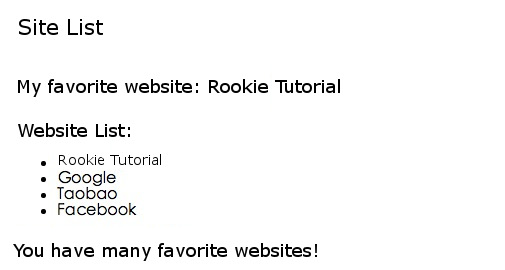
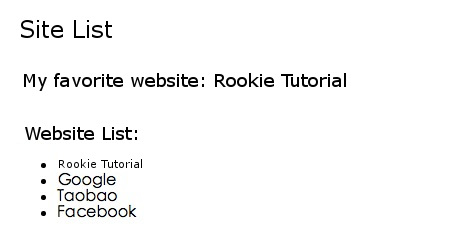
ngFor loops an array, in fact ngFor can iterate over any object that can be iterated. app create under the directory site.ts , the code isas follows: app/site.ts file: ¶ export class Site {
constructor(
public id: number,
public name: string) { }
}
id and name the class. Site analogous name attributes: app/app.component.ts file: ¶ import { Component } from '@angular/core';
import { Site } from './site';
@Component({
selector: 'my-app',
template: `
{{title}}
My favorite websites: {{mySite.name}}
`
})
export class AppComponent {
title = 'Site List';
sites = [
new Site(1, 'Rookie Tutorial'),
new Site(2, 'Google'),
new Site(3, 'Taobao'),
new Site(4, 'Facebook')
];
mySite = this.sites[0];
}
1.5.3. Pass through NgIf make conditional display 
We can use it. NgIf to set the data that outputs the specified condition.
In the following example, we judge that if there are more than 3 websites, output the prompt message: modify the following Website List: You have many favorite websites! After modification, the browser displays as follows, with an additional prompt at the bottom: app.component.ts file, the code is as follows: app/app.component.ts file: ¶ import { Component } from '@angular/core';
import { Site } from './site';
@Component({
selector: 'my-app',
template: `
{{title}}
My favorite websites: {{mySite.name}}