7.3.1. What is Cargo? #
Cargo is the build system and package manager for Rust.
Rust developers often use Cargo to manage Rust projects and obtain the libraries that projects depend on. In the last tutorial, we used the cargo new greeting command to create a project called greeting. Cargo created a new folder called greeting and deployed a typical file structure of the Rustproject. This greeting folder is the project itself.
7.3.2. Cargo function #
In addition to creating a project, Cargo also has a series of functions suchas build project and run project. Build and run correspond to the followingcommands:
cargo build cargo run Cargo also has the functions of getting packages, packaging, advanced builds, and so on. For more information on how to use it, please see the Cargo command.
7.3.3. Configure the Rust project in VSCode #
Cargo is a good build tool, and if you make VSCode work with it, VSCode willbe a very convenient development environment.
We set up the greeting project in the previous chapter, and now we open the greeting folder with VSCode (note that it is not runoob-greeting).
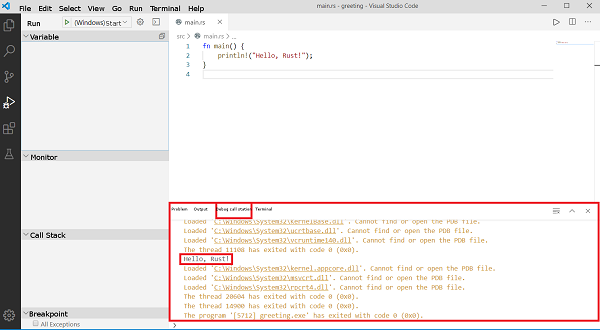
After opening greeting, create a new folder in it Then click “run” in the left column of VSCode. Select “(Windows) start” if you are using MSVC. If you are using MinGW and GDB is installed, select “(gdb) start”, please fill in “miDebuggerPath” in launch.json before starting gdb. The program will start debugging and running. The run output appears in the Debug console: .vscode note the dot in front of vscode. If you have this folder, you don’t need to create a new one. In the newly built .vscode create two new files in the folder tasks.json and launch.json the contents of the document are as follows:Tasks.json file #
"version":"2.0.0", "tasks":"label":"build", "type":"shell", "command":"cargo", "args":["build"]
Launch.json file (for Windows systems) #
"version":"0.2.0", "configurations":"name":"(Windows)firing", "preLaunchTask":"build", "type":"cppvsdbg", "request":"launch", "program":"${workspaceFolder}/target/debug/${workspaceFolderBasename}.exe", "args":[], "stopAtEntry":false, "${workspaceFolder}", "environment":[], "externalConsole":false,"name":"(gdb)firing", "type":"cppdbg", "request":"launch", "program":"${workspaceFolder}/target/debug/${workspaceFolderBasename}.exe", "args":[], "stopAtEntry":false, "cwd":"${workspaceFolder}", "environment":[], "externalConsole":false, "MIMode":"gdb", "miDebuggerPath":"Fill in the directory where GDB is located here", "setupCommands":[{"description":"Enable neat printing for gdb", "text":"-enable-pretty-printing", "ignoreFailures":true}]}]}
Launch.json file (for Linux systems) #
{"version":"0.2.0","configurations":[{"name":"Debug","type":"gdb","preLaunchTask": "build","request":"launch","target":"${workspaceFolder}/target/debug/${workspaceFolderBasename}", "cwd": "${workspaceFolder}"}]}
Launch.json file (for Mac OS systems) #
{"version":"0.2.0","configurations":[{"name":"(lldb) firing","type":"cppdbg","preLaunchTask":"build","request":"launch","program":"${workspaceFolder}/target/debug/${workspaceFolderBasename}","args":[],"stopAtEntry":false,"cwd":"${workspaceFolder}","environment":[],"externalConsole":false,"MIMode":"lldb"}]} 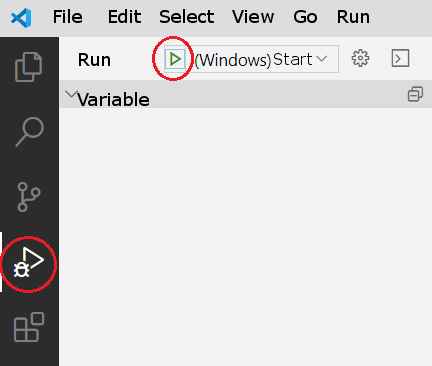
7.3.4. Debug Rust in VSCode #
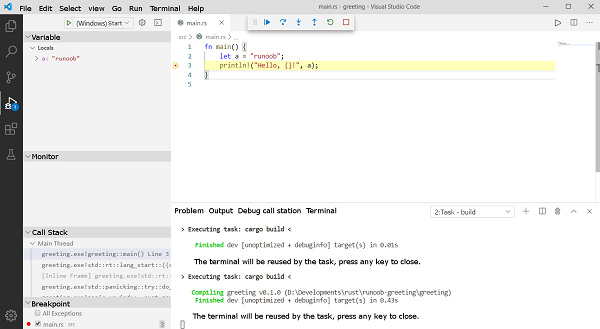
The method of debugging a program is similar to that of other environments, you can set a breakpoint by clicking a red dot on the left side of the line number, and pause when you encounter a breakpoint during operation, so that developers can monitor the value of real-time variables.