Free community version of IntelliJ IDEA download address: https://www.jetbrains.com/idea/download/index.html
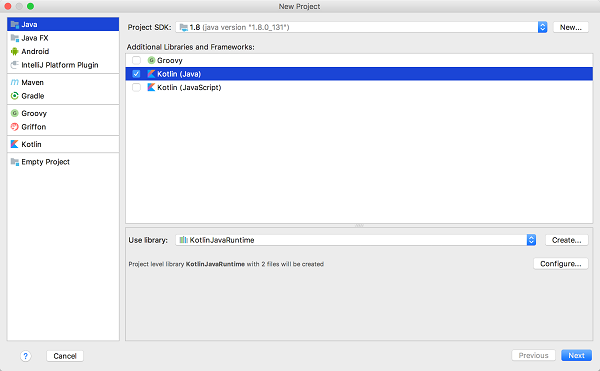
After downloading and installing, we can use this tool to create projects. The creation process requires selecting SDK and using Kotlin with JDK 1.6+.
Check the Kotlin (Java) check box in the drop-down menu on the right.
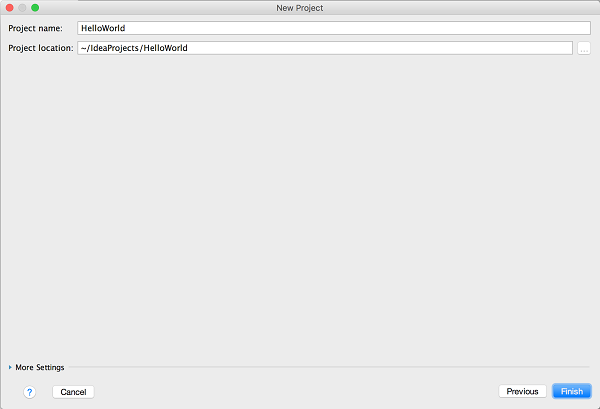
Next, let’s choose a project name: HelloWorld
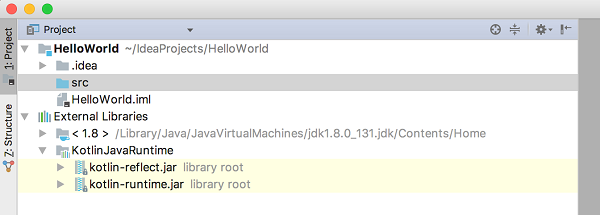
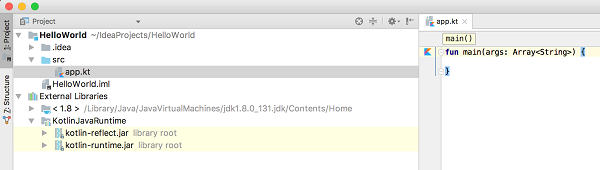
After the project is created, the file structure is as follows, which is very similar to Java.
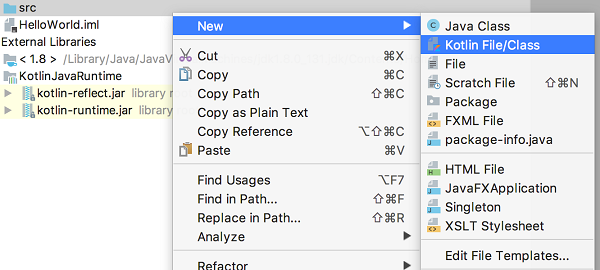
Next, let’s click src folder, creating a Kotlin file, which can be named at will, here we create app.kt
Next, we are in app.kt to write some code in the file. IntelliJ IDEA provides us with a template to do this quickly, just type main then press Tab ,that’s it.
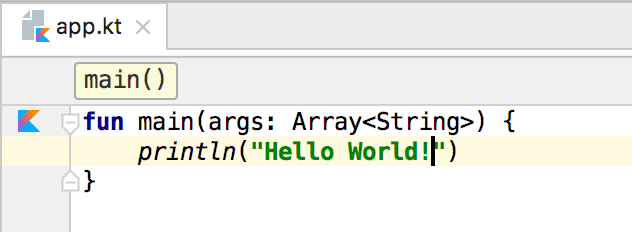
Now let’s add a line of code to print out "Hello, World!" , let’s do it.
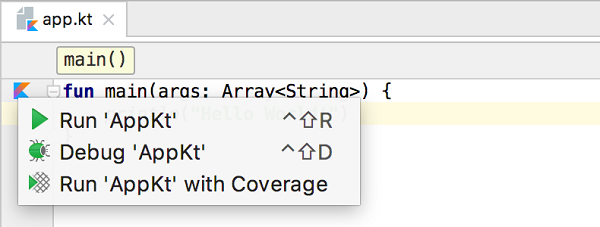
Next, we can click on the upper left corner of the editor. kotlin icon and select Run ‘AppKt’ to run the code:
After running successfully, you can run it in the window Run , you can see the results in.
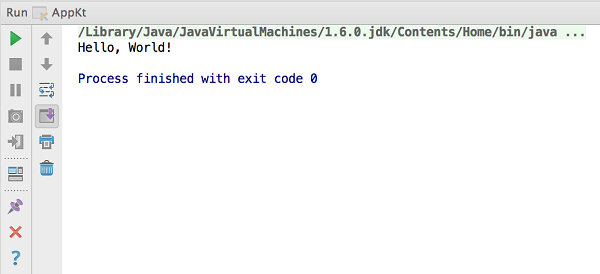
So the first Kotlin code is running.