最近几年来,地理信息系统无论是在理论上还是应用上都处在一个飞速发展的阶段。 GIS被应用于多个领域的建模和决策支持,如城市管理、区划、环境整治等等,地理信息成为信息时代重要的组成部分之一; “数字地球”概念的提出,更进一步推动了作为其技术支撑的GIS的发展。 与此同时,一些学者致力于相关的理论研究,如空间感知、空间数据误差、空间关系的形式化等等。 这恰好说明了地理信息系统作为应用技术和学科的两个方面,并且这两个方面构成了相互促进的发展过程。
Now let’s create a simple view application (a blank application) that runs on the iOS simulator.
The steps are as follows:
1、打开Xcode并选择创建一个新的Xcode项目。
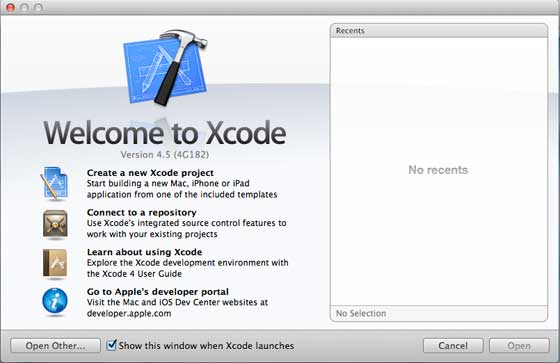
Then select a single view application
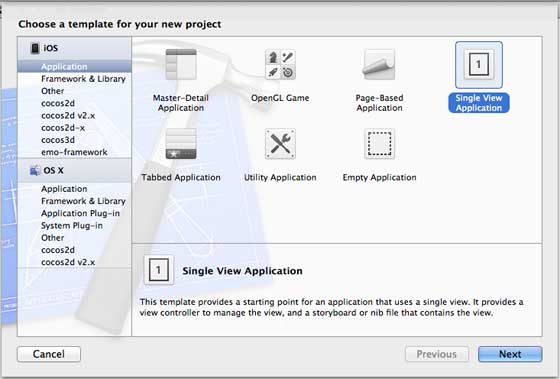
Next, enter the product name, that is, the application name, organization name, and company identifier.
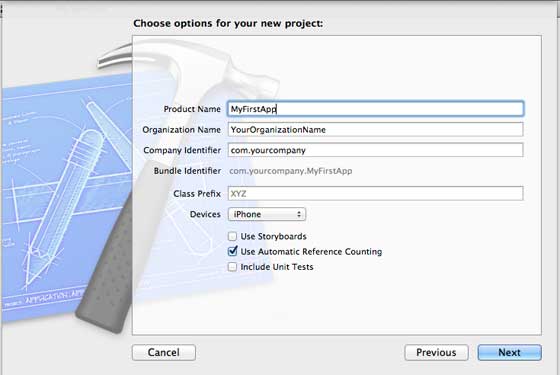
Make sure that you have selected to automatically apply the count to automatically release resources that are out of range. Click next.
5.选择项目目录并选择创建
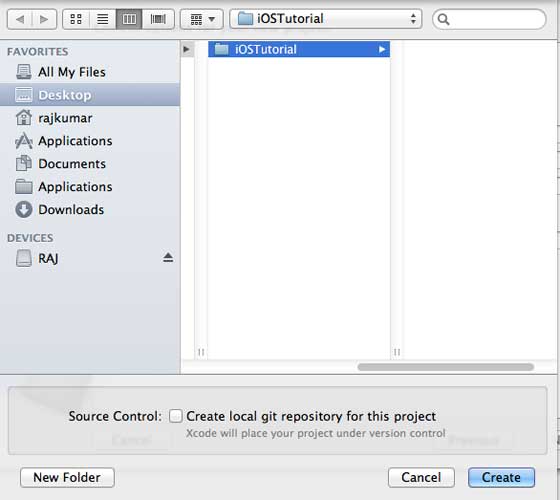
You will see the page shown below
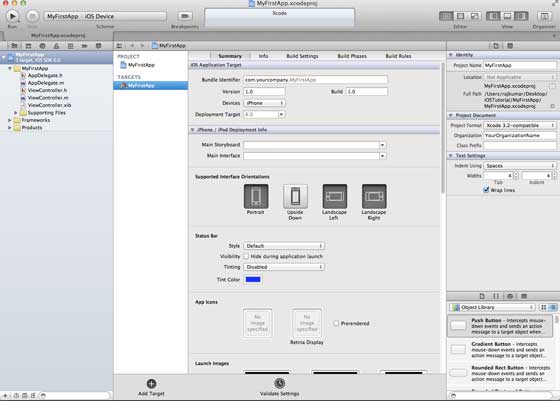
屏幕上方能够设置方向、生成和释放。有一个部署目标,设备支持4.3及以上版本的部署目标,这些不是必须的,现在只要专注于运行该应用程序。
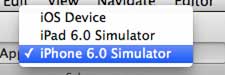
Select iPhone Simulator from the drop-down menu and run.
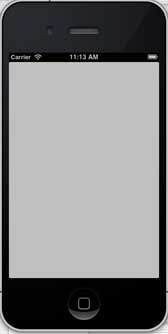
If you run the first application successfully, you will get the output as shown below.
更改背景颜色使之有开始的界面生成器。选择ViewController.xib。在右侧选择背景选项,更改颜色并运行。
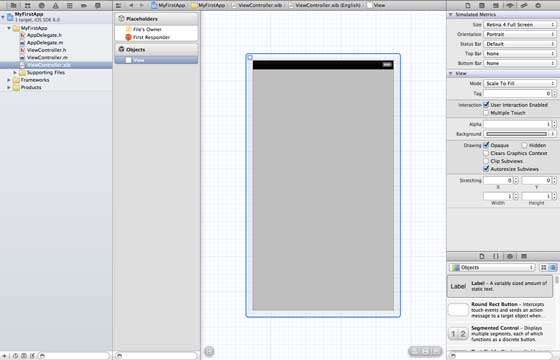
在上述项目中,默认情况下,部署目标已设置为iOS6.0且自动布局将被启用。
为确保应用程序能iOS4.3设备上正常运行,我们已经在开始创建应用程序时修改了部署目标,但我们不禁用自动布局,要取消自动布局,我们需要取消选择自动班上复选框在文件查看器的每个nib,也就是xib文件。
The parts of the Xcode project IDE are shown below (Apple Xcode4 user documentation)
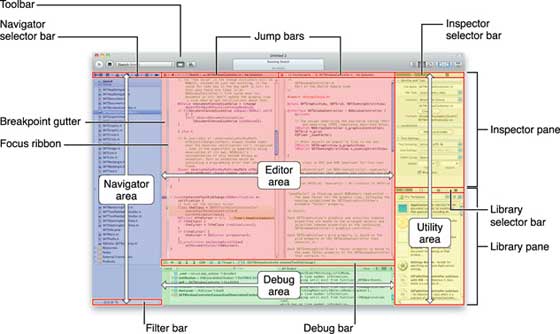
在上面所示的检查器选择器栏中可以找到文件检查器,且可以取消选择自动布局。当你想要的目标只有iOS6.0的设备时,可以使用自动布局。
当然,也可以使用新功能,如当加注到iOS6时,就可以使用passbook这一功能。现在,以Ios4.3作为部署目标。 5 different file generation applications, as shown below AppDelegate.h AppDelegate.m ViewController.h ViewController.m ViewController.xib We use single-line comments (/ /) to explain the simple code, and the important project code is explained under the code. AppDelegate calls UIResponder to handle the Ios event. Complete UIApplication commands and provide key application events, such as startup, termination, etc. The UIWindow object is used to manage and coordinate various viewpoints on the screen of an iOS device, just like other basic views that load views. Usually an application has only one window. UIViewController to handle screen flow UIApplication is defined here. All the methods defined above are application UI transfers and do not contain any user-defined methods. The UIWindow object is assigned to hold the application allocation object. UIController as the window initial view controller Call makeKeyAndVisible to make the window visible The ViewController class inherits from UIViewController and provides a basic view management model for iOS applications. The two methods are defined in the base class of the UIViewController class Call the installer in viewDidLoad after the initial view is loaded Call didReceviveMemoryWarning in case of memory warning 9.5.1. In-depth understanding of the first IOS application code 
AppDelegate.h 
// Header File that provides all UI related items. #import
9.5.2. Code description 
AppDelegate.m 
// Imports the class Appdelegate's interface import "AppDelegate.h" // Imports the viewcontroller to be loaded #import "ViewController.h" // Class definition starts here @implementation AppDelegate // Following method intimates us the application launched successfully - (BOOL)application:(UIApplication *)application didFinishLaunchingWithOptions:(NSDictionary *)launchOptions { self.window = [[UIWindow alloc] initWithFrame: [[UIScreen mainScreen] bounds]]; // Override point for customization after application launch. self.viewController = [[ViewController alloc] initWithNibName:@"ViewController" bundle:nil]; self.window.rootViewController = self.viewController; [self.window makeKeyAndVisible]; return YES; } - (void)applicationWillResignActive:(UIApplication *)application { /* Sent when the application is about to move from active to inactive state. This can occur for certain types of temporary interruptions (such as an incoming phone call or SMS message) or when the user quits the application and it begins the transition to the background state. Use this method to pause ongoing tasks, disable timers, and throttle down OpenGL ES frame rates. Games should use this method to pause the game.*/ } - (void)applicationDidEnterBackground:(UIApplication *)application { /* Use this method to release shared resources, save user data, invalidate timers, and store enough application state information to restore your application to its current state in case it is terminated later. If your application supports background execution, this method is called instead of applicationWillTerminate: when the user quits.*/ } - (void)applicationWillEnterForeground:(UIApplication *)application { /* Called as part of the transition from the background to the inactive state; here you can undo many of the changes made on entering the background.*/ } - (void)applicationDidBecomeActive:(UIApplication *)application { /* Restart any tasks that were paused (or not yet started) while the application was inactive. If the application was previously in the background, optionally refresh the user interface.*/ } - (void)applicationWillTerminate:(UIApplication *)application { /* Called when the application is about to terminate. Save data if appropriate. See also applicationDidEnterBackground:. */ } @end
9.5.3. Code description 
ViewController.h 
#import // Interface for class ViewController @interface ViewController : UIViewController @end
9.5.4. Code description 
ViewController.m 
#import "ViewController.h" // Category, an extension of ViewController class @interface ViewController () @end @implementation ViewController - (void)viewDidLoad { [super viewDidLoad]; // Do any additional setup after loading the view, typically from a nib. } - (void)didReceiveMemoryWarning { [super didReceiveMemoryWarning]; // Dispose of any resources that can be recreated. } @end 9.5.5. Code description 