
In this chapter, we will learn how to create a form using Bootstrap. Bootstrap can create different styles of forms with some simple HTML tags and extended classes.
Form elements, textarea, and select elements are used in the case of the Stacked forms (full screen width): vertical Inline forms: horizontal Bootstrap provides two types of form layouts: The following example uses two input boxes, a check box, and a submit buttonto create a stacked form: Display effect: In the example, we use The check box (checkboxe) uses a different tag. They use the If you want form elements to be displayed side by side, use the The two input boxes of the following example are displayed side by side to create an inline form: Display effect: Use Display effect: We can pass through the Display effect: Use Use Use Display effect:
In recent years, Geographic Information Systems (GIS) have undergone rapid development in both theoretical and practical dimensions. GIS has been widely applied for modeling and decision-making support across various fields such as urban management, regional planning, and environmental remediation, establishing geographic information as a vital component of the information era. The introduction of the “Digital Earth” concept has further accelerated the advancement of GIS, which serves as its technical foundation. Concurrently, scholars have been dedicated to theoretical research in areas like spatial cognition, spatial data uncertainty, and the formalization of spatial relationships. This reflects the dual nature of GIS as both an applied technology and an academic discipline, with the two aspects forming a mutually reinforcing cycle of progress. .form-control class, the width is set to 100%. 7.31.1. Bootstrap5 form layout 
Stack form 
7.31.2. Example 
<form>
<div class="mb-3 mt-3">
<label for="email" class="form-label">Email:label>
<input type="email" class="form-control" id="email" placeholder="Enter email" name="email">
div>
<div class="mb-3">
<label for="pwd" class="form-label">Password:label>
<input type="password" class="form-control" id="pwd" placeholder="Enter password" name="pswd">
div>
<div class="form-check mb-3">
<label class="form-check-label">
<input class="form-check-input" type="checkbox" name="remember"> Remember me
label>
div>
<button type="submit" class="btn btn-primary">Submitbutton>
form>
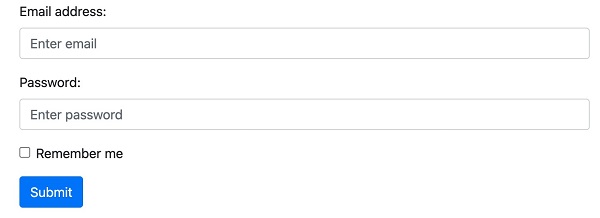
.form-label class to ensure that the tag element has a certain inner margin. .form-check wrap around the container elements. Check boxes and radio buttons use the .form-check-input whose label can be used .form-check-label class. Inline form 
.row and .col : 7.31.3. Example 
<form>
<div class="row">
<div class="col">
<input type="text" class="form-control" placeholder="Enter email" name="email">
div>
<div class="col">
<input type="password" class="form-control" placeholder="Enter password" name="pswd">
div>
div>
form>

Text box 
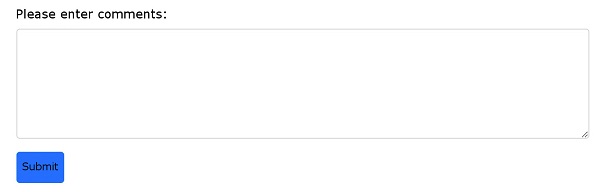
textarea label to create a text box to submit the form, using the .form-control class render text box textareas label: 7.31.4. Example 
Input box size 
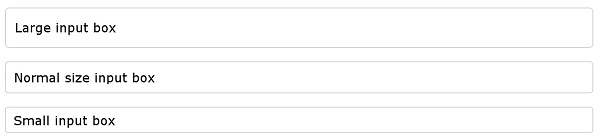
.form-control use in the input box .form-control-lg or .form-control-sm class to set the size of the input box 7.31.5. Example 
<input type="text" class="form-control form-control-lg" placeholder="Large input box">
<input type="text" class="form-control" placeholder="Normal size input box">
<input type="text" class="form-control form-control-sm" placeholder="Small input box">
Disable / read-only form 
disabled/readonly Property setting input box disabled / read-only: 7.31.6. Example 
<input type="text" class="form-control" placeholder="Normal input">
<input type="text" class="form-control" placeholder="Disabled input" disabled>
<input type="text" class="form-control" placeholder="Readonly input" readonly>
Plain text input 
.form-control-plaintext Class can delete the border of the input box: 7.31.7. Example 
<input type="text" class="form-control-plaintext" placeholder="Plaintext input">
<input type="text" class="form-control" placeholder="Normal input">
Color picker 
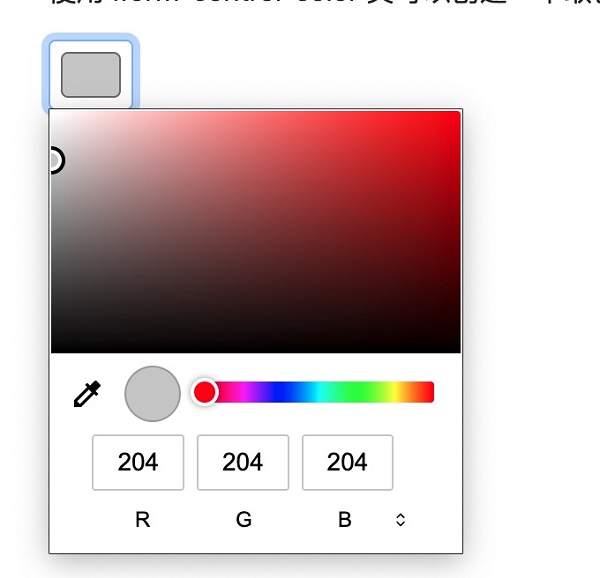
.form-control-color Class can create a color picker: 7.31.8. Example 
<input type="color" class="form-control form-control-color" value="#CCCCCC">
Principles, Technologies, and Methods of Geographic Information Systems
102